
- Posted on
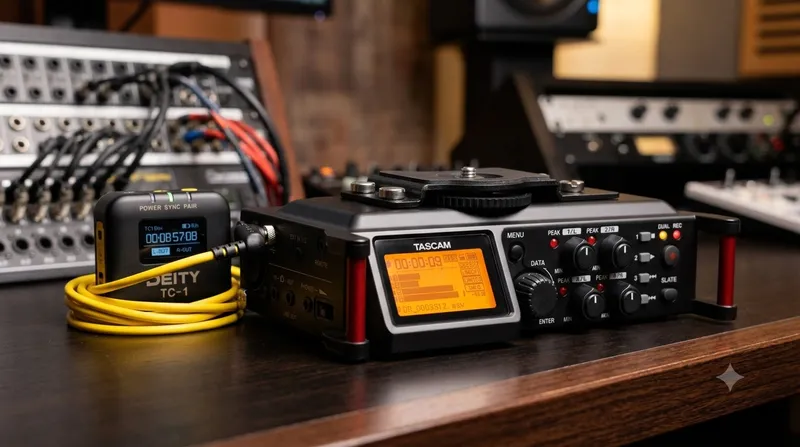
Pro Audio on an Indie Budget: How to Rig the Tascam DR-70D and Deity TC-1 for Perfect DSLR Sync
We’ve all been there. You’re shooting on a crisp mirrorless or DSLR camera, the image looks beautiful, but your audio workflow is a total mess. You want the pristine quality of external XLR microphones, but manually lining up clapperboards or relying on “sync by waveform” features in post-production can slow your editing workflow to a crawl.
If you don’t have thousands to drop on a high-end cinema camera with built-in timecode metadata inputs, don't worry. By combining two affordable workhorses—the Tascam DR-70D and the Deity TC-1—you can build a professional, frame-accurate timecode and multi-channel audio ecosystem for a fraction of the cost.
Here is how to set up this ultimate budget-friendly filmmaking rig.
Why This Combo is a Game Changer
The Audio Muscle: Tascam DR-70D The Tascam DR-70D is a legendary, form-fitting 4-channel field recorder designed specifically to bolt right underneath or on top of your DSLR. (Tascam)
- Four XLR/TRS Combo Jacks: True professional connectivity for shotgun mics and lavaliers.
- Great Preamps: HDDA (High Definition Discrete Architecture) preamps give you clean gain with low hiss.
- Form Factor: It acts as a bridge between your camera and your tripod, keeping your rig tight and portable.
The Sync Master: Deity TC-1 The Deity TC-1 is a tiny, incredibly smart wireless timecode generator.
Audio Timecode (LTC): Because DSLRs and the DR-70D don’t have dedicated BNC timecode ports, the TC-1 converts timecode into an audio signal (Linear Timecode).
Zero Drift: It boasts an accuracy that ensures less than 1 frame of drift over a 72-hour period. (Deity Microphones)
Sidus Audio App: You can control, sync, and monitor multiple TC-1 boxes right from your phone via Bluetooth. (Newsshooter)
Step-by-Step Setup Guide
Because we are working with consumer/prosumer gear, we will be recording Audio Timecode (LTC). This means the timecode will sound like a digital screech on one of your audio tracks, which your editing software will seamlessly translate into perfect visual timestamps later.
Step 1: Set Up Your Frame Rates Before turning anything on, make sure your camera, your Tascam recorder, and your Deity TC-1 are all set to the exact same frame rate (e.g., 23.976 fps, 24 fps, or 29.97 fps).
Step 2: Configure the Deity TC-1
Turn on the** TC-1 and open the Sidus Audio App on your phone to sync the time of day.
In the TC-1 menu, navigate to OUT TYPE and select A-OUT (Audio Out / Mic Level). This ensures the signal isn’t too hot for the Tascam's mic inputs.
- In the TC-1 menu, navigate to OUT TYPE and select A-OUT (Audio Out / Mic Level). This ensures the signal isn’t too hot for the Tascam's mic inputs.
Step 3: Connect to the Tascam DR-70D
Mount the DR-70D to your camera and pop the Deity TC-1 into the camera's hot shoe (or hook-and-loop it to the side of the Tascam).
Using the included 3.5mm locking TRS cable, plug the TC-1 into the EXT IN 1/2 jack (or use a 3.5mm-to-XLR adapter into Input 1) on the Tascam DR-70D.
On the Tascam, set that specific channel’s input level to MIC (make sure phantom power is turned off for that channel).
Step 4: Plug in Your Production Mics
Plug your actual boom or wireless lavalier microphones into the remaining XLR channels (e.g., Channels 2, 3, or 4). Adjust your gains normally. Channel 1 will strictly be dedicated to recording that digital timecode screech.
Pro Tip: If you want timecode on your camera's internal scratch audio as well, you can run a 3.5mm splitter from the TC-1, or buy a second affordable TC-1 box to plug directly into your camera’s 3.5mm microphone input.
Pro Tip: In the Monitor section on the Tascam, disable the channel that is recording Timecode.
How to Sync It in Post-Production When you wrap your shoot and dump your footage, you’ll have video files from your DSLR and separate multi-track audio files from your Tascam.
Import your footage and audio into your NLE of choice (DaVinci Resolve, Premiere Pro, or Final Cut Pro).
Select your files, right-click, and look for "Read Timecode from Audio Track" or "Update Timecode from Audio LTC."
On the Tascam, set that specific channel’s input level to MIC (make sure phantom power is turned off for that channel).
Click "Sync Clips," and like magic, your external Tascam multi-track audio will perfectly snap into alignment with your DSLR video files.
The Verdict
You don’t need an expensive RED, ARRI, or Sony FX6 to experience the speed and efficiency of a professional timecode workflow. For a couple hundred bucks, adding a Deity TC-1 to a Tascam DR-70D completely bridges the gap between indie DSLR shooting and high-end Hollywood workflows. You get the pristine, multi-channel audio control of a dedicated field recorder, combined with the one-click syncing luxury of expensive cinema packages.
What does your current audio setup look like, and how much time are you spending syncing clips manually in post?